Comment on a PDF proof
Mark up your proof in the free Adobe Acrobat Reader, so every change reaches us exactly as you meant it.
- 10 steps
- About 5 minutes
- Mac and Windows
Updated 12 November 2026
Get set up
Open the proof in Acrobat Reader
Save the PDF we sent you, then open it in Adobe Acrobat Reader. Reader is free: download it from get.adobe.com/reader.
Turn on commenting
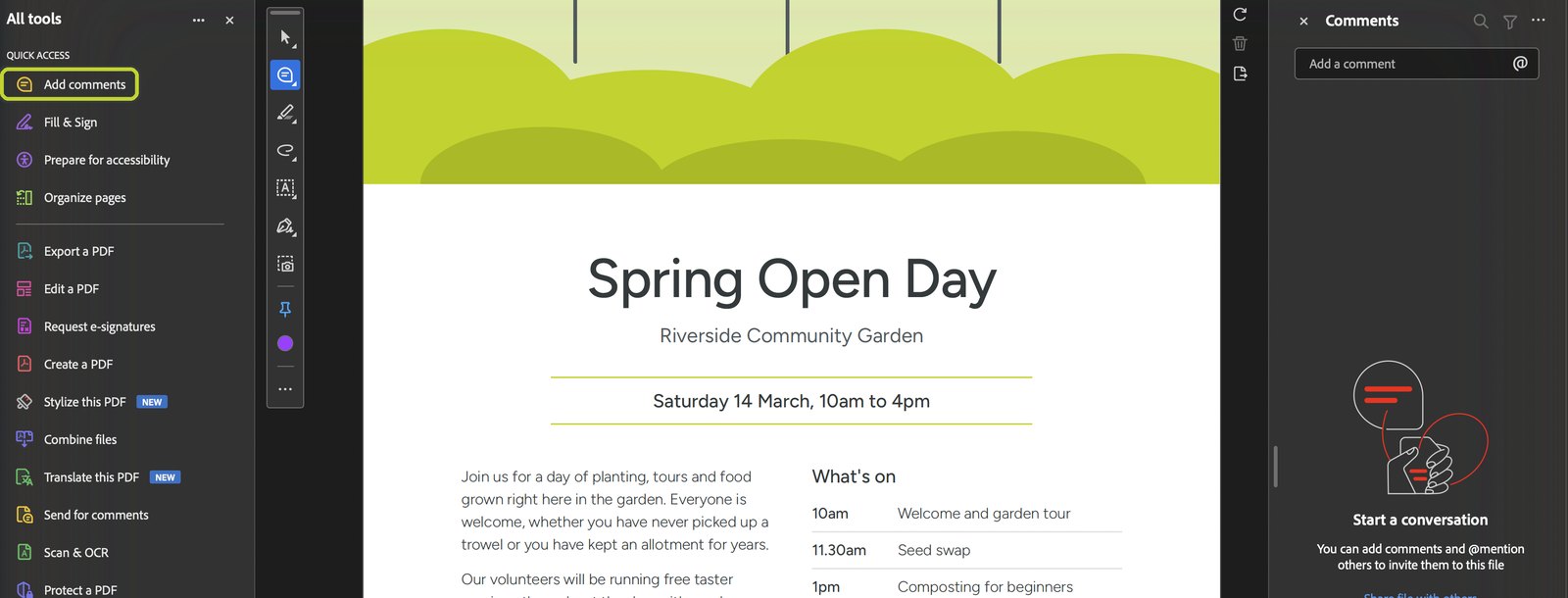
Click All tools, then Add comments. A comment toolbar appears on the left of the page and the Comments panel opens on the right.
Mark your changes
Pick the right tool
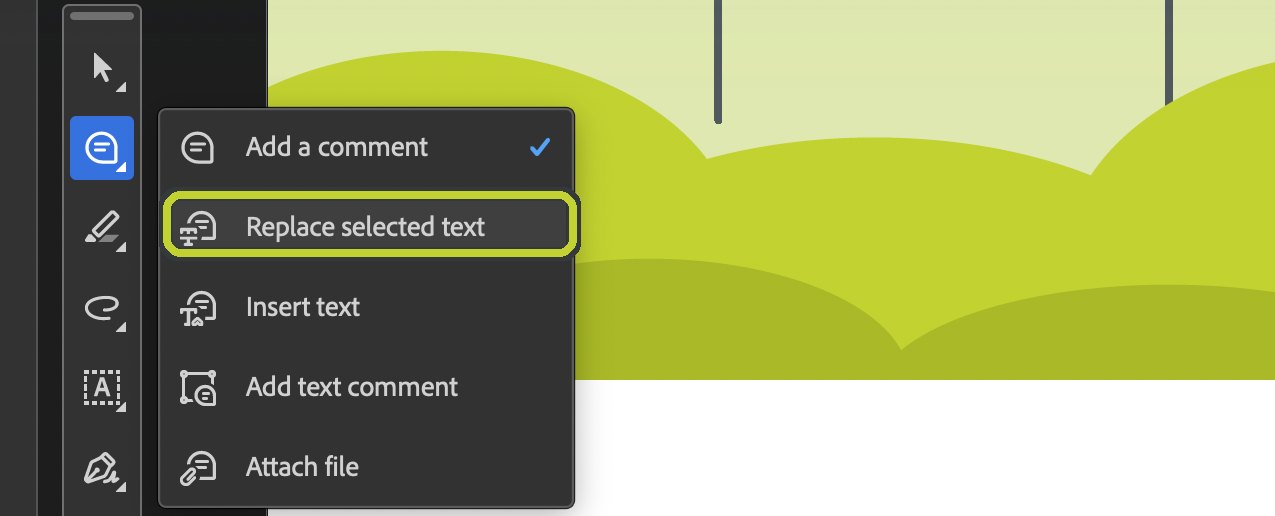
Click the speech-bubble icon on the toolbar to see the comment tools. To change wording, choose Replace selected text.
Change wording
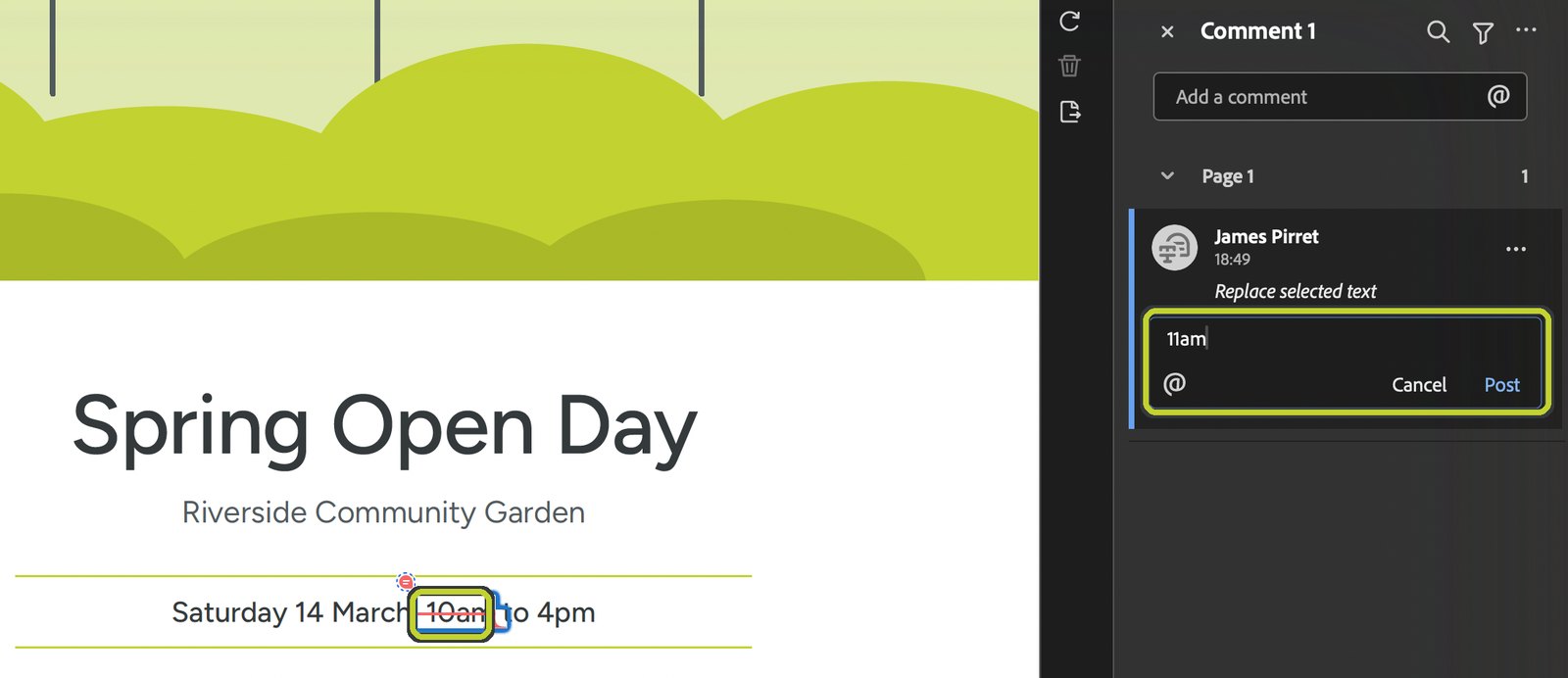
Select the words you want to change. They are crossed out and a box opens in the Comments panel. Type the new wording and click Post.
Delete words
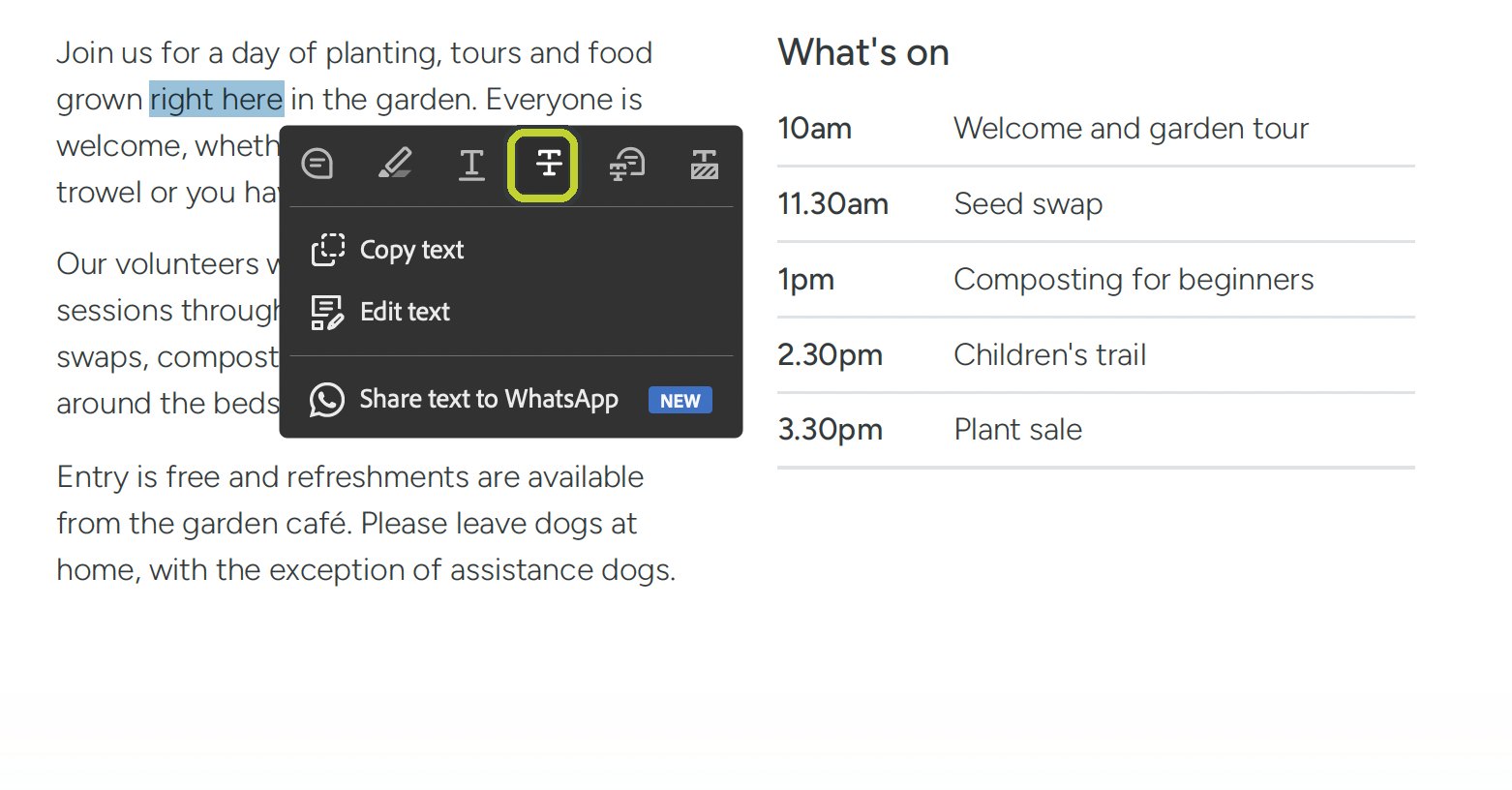
Select the words and click Strikethrough text in the menu that appears. Add a short note if it helps, then click Post.
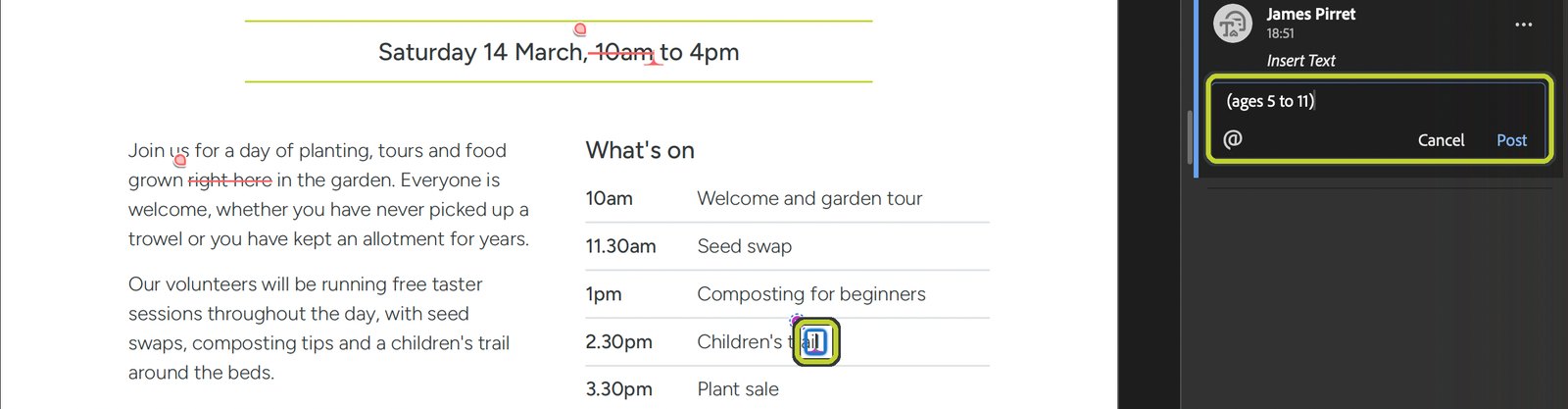
Add new words
Choose Insert text from the comment menu, click exactly where the new words should go, type them and click Post.
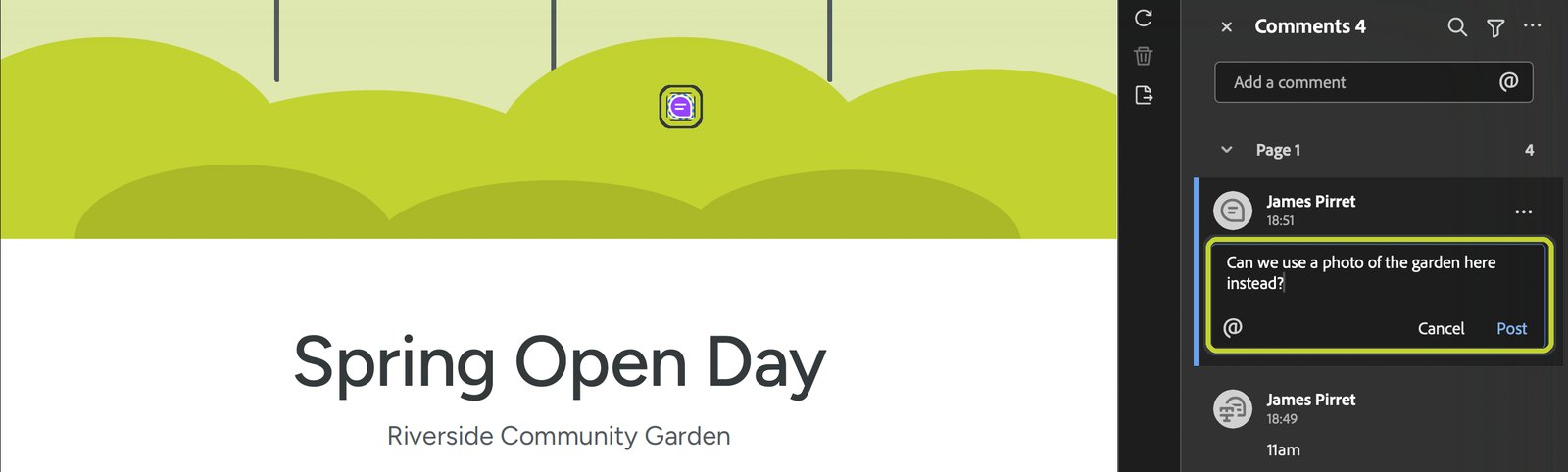
Leave a general note
For images, layout or anything that isn't a text change, choose Add a comment, click that spot on the page, type your note and click Post.
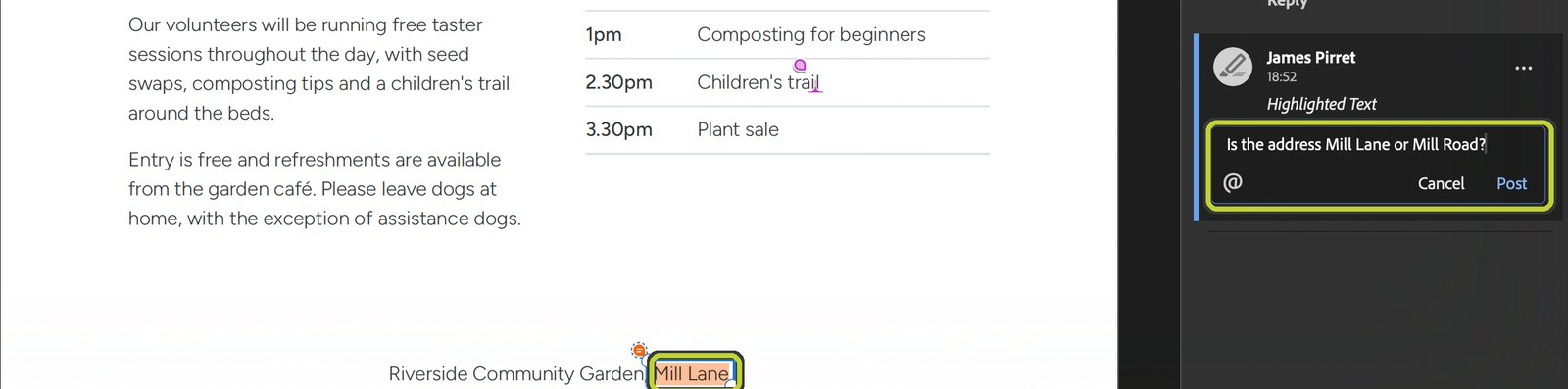
Ask a question
Select the words, click Highlight text in the menu that appears, type your question and click Post.
Send it back
Check your comments
Every change you've made is listed in the Comments panel. Click one to jump to it on the page.

Save and email it to us
Choose File > Save (Cmd+S on a Mac, Ctrl+S on Windows), then email the saved PDF back to us with the same file name.
Good to know
- Use Acrobat ReaderMark-ups made in a web browser or in Mac Preview don't always come through, so please use Reader.
- Click Post every timeYour note is saved with the mark-up once you click Post.
- One change per commentSeparate comments are easier to follow and we can tick each one off as it's done.
- Keep it in the PDFPlease don't print and scan, or type over the text itself. Comments keep every change clear.